![milk-logo.jpeg]](https://support.milkbooks.com/hs-fs/hubfs/milk-logo.jpeg?height=34&name=milk-logo.jpeg)
Some MILK formats support full spread images through pre-designed layouts, while others require a manual workaround due to different binding types. Use the guide below to find the option that applies to your product.
Products With Pre-Designed Full Spread Layouts
We offer full spread layouts in our Premium Photo Books, Premium Photo Albums, Classic Photo Albums and a select few of our Moleskine Photo Books.
These formats use lay-flat or near lay-flat binding which allows an image to span across two pages with minimal loss to the centre fold. This is also the best method for uploading custom spreads.
Using A Pre-Designed Full Spread Layout
Following the steps below for placing your image across two pages is the best way to ensure there is no misalignment between the two pages and that your final print result is how you envisioned it.
First, use the drop-down menu in the layout panel and select "1 Image":
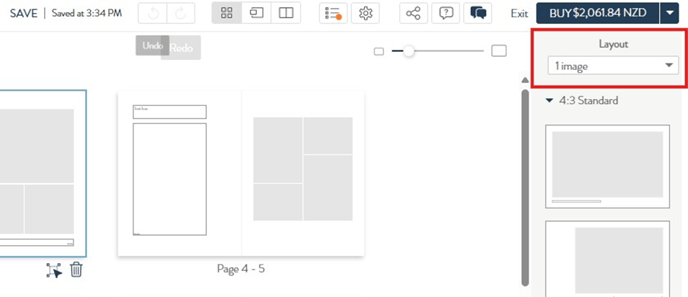
Choose your preferred image ratio, however, in some formats you'll need to select a 4:3 image ratio.
Scroll to the end of the layout options to find the layout that shows a single image placeholder across both pages.
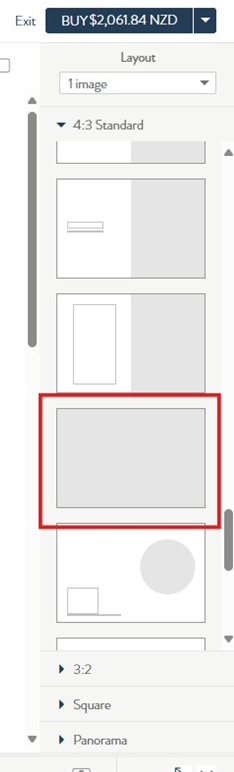
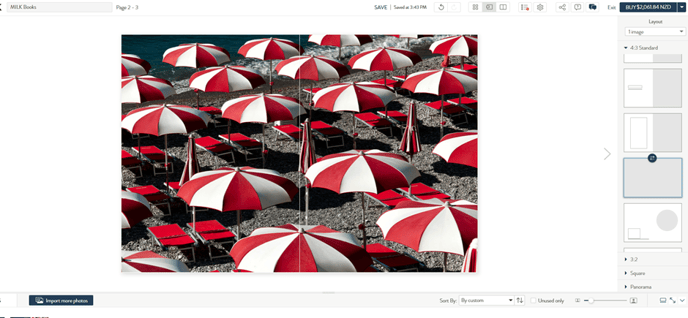
Once you've selected this layout, drag your image into the placeholder. When your image is placed you may notice slight cropping around the outer edges. This is the required bleed area which is trimmed during production to prevent an uneven white border. When the image is not selected, you will see a centre line that shows where the pages meet.
Image selected, showing the bleed area

Image not selected, showing the binding line
Products That Require a Manual Full Spread Layout
Full spread layouts are not offered within our Classic Photo Books, MILK Magazines, or Softcover Photo Books.
These products use PUR binding, which bow into the centre. As a result, part of the image will be lost in the gutter. If you still want a full spread image, you can create one manually using our Free Transform Tool, but please be aware this is at your own risk.
Creating A Manual Full Spread Layout
On your chosen page open the Free Transform Tool.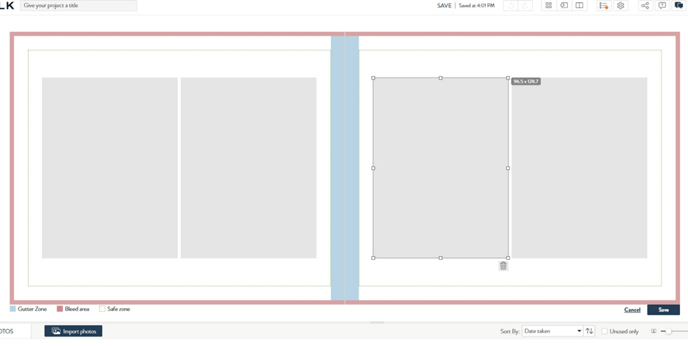
Delete any extra image placeholders or text boxes, leaving just one image placeholder.
Using the corner handles, stretch the placeholder all the way into the red bleed area on both sides. The placeholder must reach the edge of the bleed area to ensure the best possible print result.
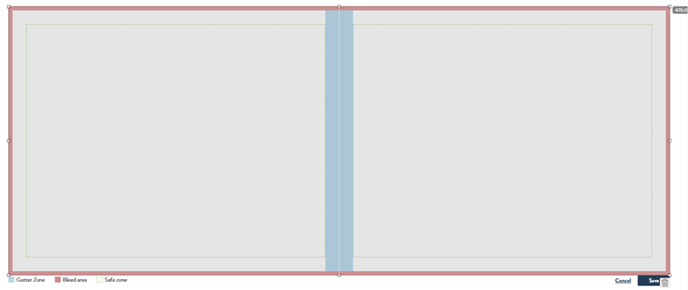
Once you have saved your new layout, you can add your image to it. There will be blue area down the gutter to indicate where the image will be interrupted by the binding. You will also see a warning pop-up to remind you that details may be lost in the gutter.

Do NOT try to place one half of the image into each of two separate placeholders. This often results in misalignment or an incorrect bleed.

Again, manually creating a full spread in products with PUR binding is at your own risk. Please proceed only if you are comfortable with some image loss at the gutter.
If you need further clarification or guidance, feel free to contact our friendly Customer Care team.