![milk-logo.jpeg]](https://support.milkbooks.com/hs-fs/hubfs/milk-logo.jpeg?height=34&name=milk-logo.jpeg)
To add more pages to your project, you will need to click on the project settings button at the top of the design studio. This will take you to a different screen with different options to customise your project. 
At the top of this page is a slider which you can use to add or reduce the number of pages in your project. Then to confirm the new page total, click save at the top right of the screen.

You can also add or remove one spread at a time while in grid view.
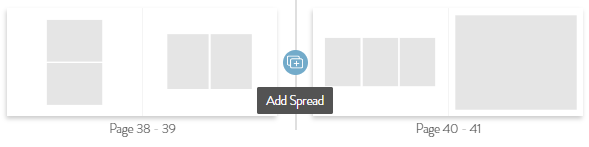
To add an individual spread in grid view, hover your cursor over the gap between spreads and an "add spread" button will appear. This will add a new spread in the gap.
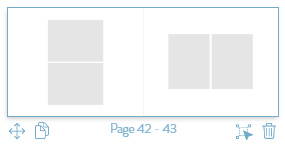
To delete an individual spread, click on the spread you no longer want. A blue outline and a trashcan icon should appear. Click the trashcan icon and confirm that you would like to delete the spread.
To add one spread at a time while in spread view, you will see a tool bar on the left-hand side of the Design Studio. Click the rectangle with the cross in it to add a spread (2 pages).
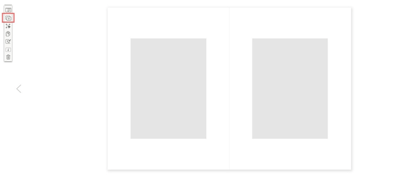
To remove a spread in spread view, click the trash can icon in the tool bar to remove the spread (2 pages).